Actions include Add Marker, Add Chapter Marker, Marker Controls, Session Key, Twitch Stream Marker, Create Session, and Create Sub-session.
Physical controls
Capture timestamps with Marker for Stream Deck.
The Marker Stream Deck plugin keeps capture under your fingers with dedicated keys for markers, chapters, sessions, sub-sessions, and Twitch live streams.
Best for
Live creators
Core action
One-tap marker capture
Requires
Marker API token
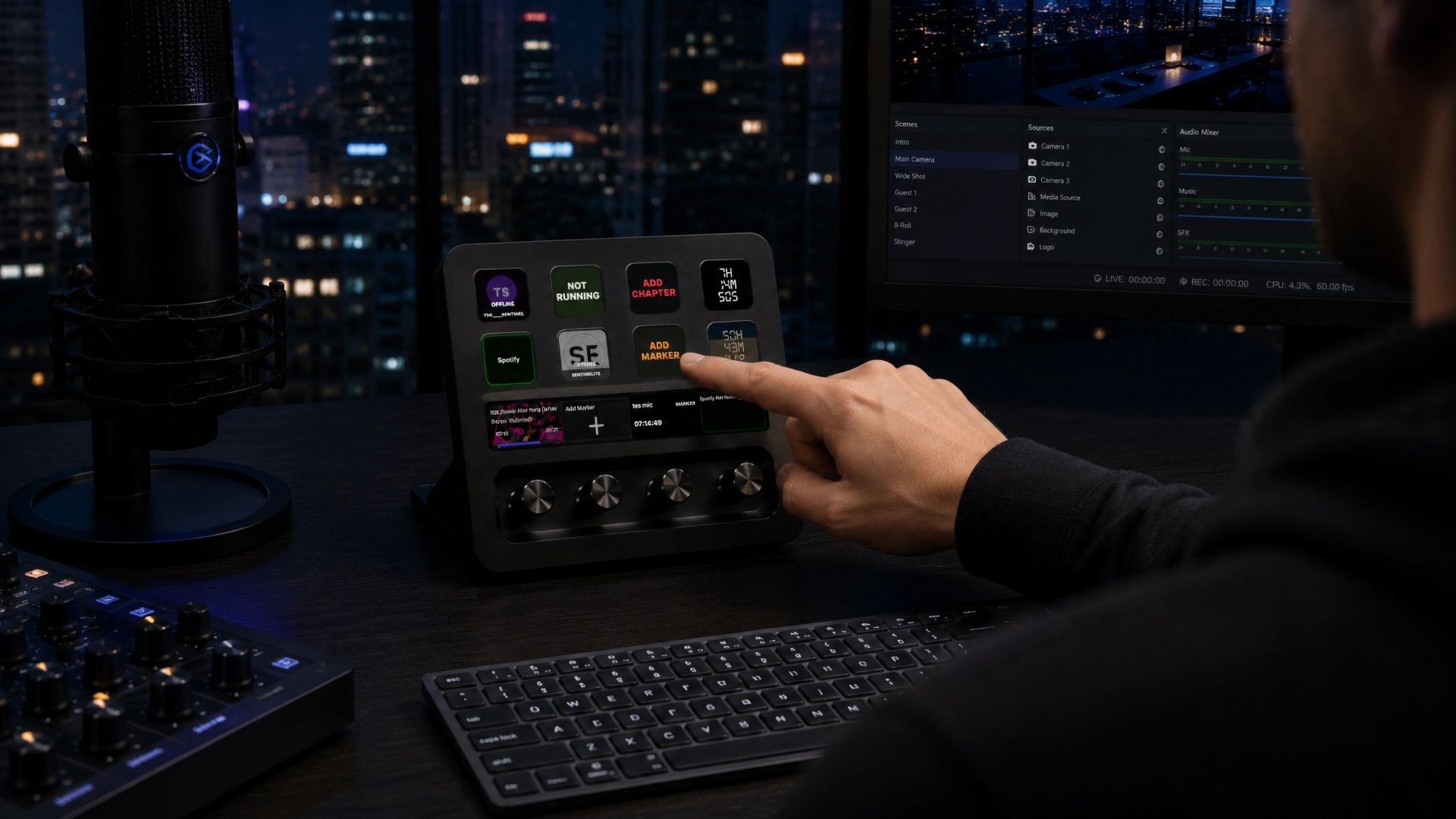
Property inspectors load Marker sessions, sub-sessions, tags, themes, and active state.
The Twitch Stream Marker key uses linked channel status and live sub-session data from the integration context endpoint.
Workflow
How Stream Deck works with Marker
- 1
Create a Marker API token with Stream Deck scopes.
- 2
Paste the token into the Stream Deck plugin settings.
- 3
Choose a session, sub-session mode, tags, and click behavior.
- 4
Press a key or Stream Deck+ control while recording or streaming.
Setup
Get started
Install the Marker Stream Deck plugin.
Create a Marker API token in Marker.
Configure the API environment and token in the property inspector.
Assign keys for markers, chapter markers, sessions, or Twitch streams.
Use cases
Where it fits
Capture gameplay highlights without leaving the controller or keyboard.
Give editors chapter markers from a dedicated Stream Deck+ control.
Show live Twitch channel state and add a Marker record to the active stream sub-session.
FAQ
Stream Deck questions
What can the Stream Deck plugin do?
It can add markers, add chapter markers, create sessions, create sub-sessions, show session controls, and target linked Twitch streams.
Does the Stream Deck plugin need an API token?
Yes. The plugin authenticates with a Marker API token so it can read sessions and write marker records from outside the app.
Does the Twitch key create Twitch-native markers?
The dedicated Twitch key creates normal Marker records against the linked live channel session and sub-session, keeping the editor workflow consistent.